Techvia TMS can track a load from the driver’s phone with no ELD and no app install. You open the load’s Live tracking tab, click Email to driver, and the driver opens the link and taps Start sharing. Their position flows back to your Live Tracking page, and the same phone page lets them update the load status and upload a POD photo. A separate customer link gives your shipper a status page without GPS or pricing. This guide shows each step from a real test.
It pairs with the bigger-picture post on how to track a load without calling the driver.
Before you start
Tracking links belong to a load, so you need a load with a driver on it. In the load’s Details tab, set Assignment mode to Driver and pick a Truck (required). A Drivers tab then appears next to Stops. That’s where you add the driver, and you can add more than one and mark a primary. It’s easy to miss, because the tab only shows up in Driver mode.
For the email option, the driver’s record needs an email address (Fleet → Drivers).
Step 1: Send the driver their link
Open the load and go to the Live tracking tab. You’ll see:
- Get tracking link creates the link so you can copy it into a text message.
- Email to driver sends it straight to the driver’s email on file.
- Get customer link is for your shipper, covered below.
We used Email to driver. The message, “Tracking link for load L-2026-000002”, arrived within seconds and tells the driver to open it on their phone and tap Start sharing.
Step 2: The driver taps Start sharing
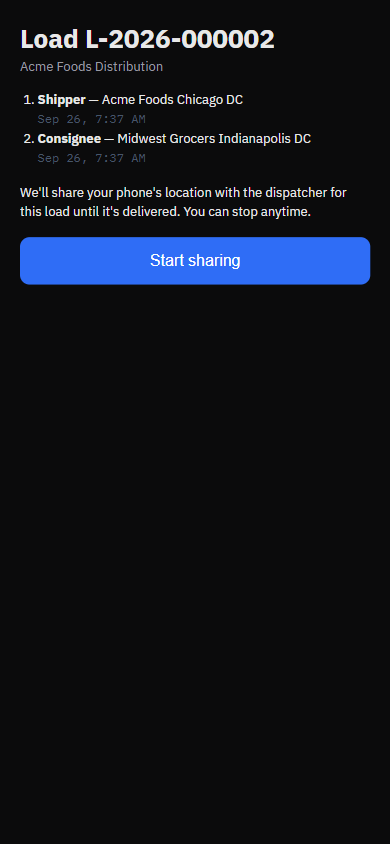
The link opens a simple page built for a phone. It shows the load number, the customer and the stops, plus a plain explanation: the phone’s location is shared with the dispatcher for this load until it’s delivered, and the driver can stop at any time.
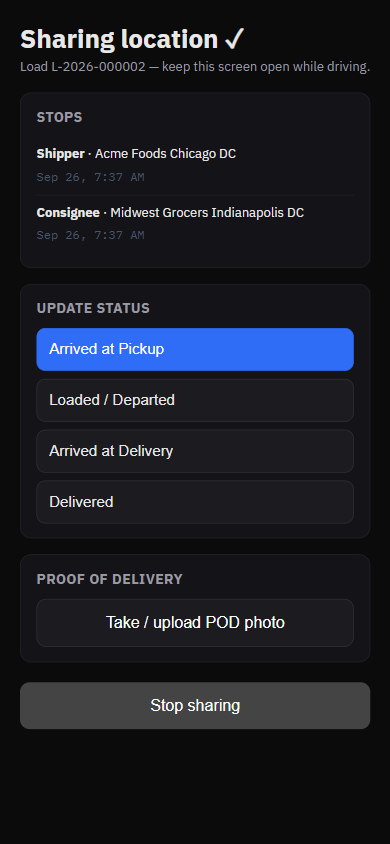
After Start sharing, the phone’s browser asks for location permission (the driver has to allow it), and the page switches to “Sharing location ✓”.
Worth knowing:
- Positions go in batches, about every 30 seconds. The first dot can take half a minute to show up on your side, so don’t panic if it isn’t instant.
- The driver should keep the page open while driving. It’s a web page, not a background app.
- The same screen has Update status buttons (Arrived at Pickup, Loaded / Departed, Arrived at Delivery, Delivered). They unlock in order, and each tap updates the load status for you.
- Take / upload POD photo sends the proof of delivery from the dock. More on why that matters in the POD collection workflow.
GPS can move the load along too. When a position lands inside a stop’s geofence, Techvia can mark the arrival itself. This relies on the stop’s facility having coordinates, so create facilities by picking the address from search rather than typing it by hand.
Step 3: Watch it on Live Tracking
Operations → Live Tracking is the dispatcher’s view: counters for vehicles reporting, loads with shared links, telematics trucks, trucks moving and positions that have gone stale, next to a map and a list of tracked loads. Samsara-connected trucks show up there too on plans that include the integration. See TMS with Samsara integration.
Step 4: Give the customer their own link
Back on the load’s Live tracking tab, click Get customer link and copy it to your shipper. Their page shows the load’s progress (At Pickup, En Route, At Delivery, Delivered), an estimated arrival and the stops. It deliberately shows no GPS trail and no financial data, so it’s safe to share. The link has an expiry shown next to it, so share a fresh one if a load runs long.
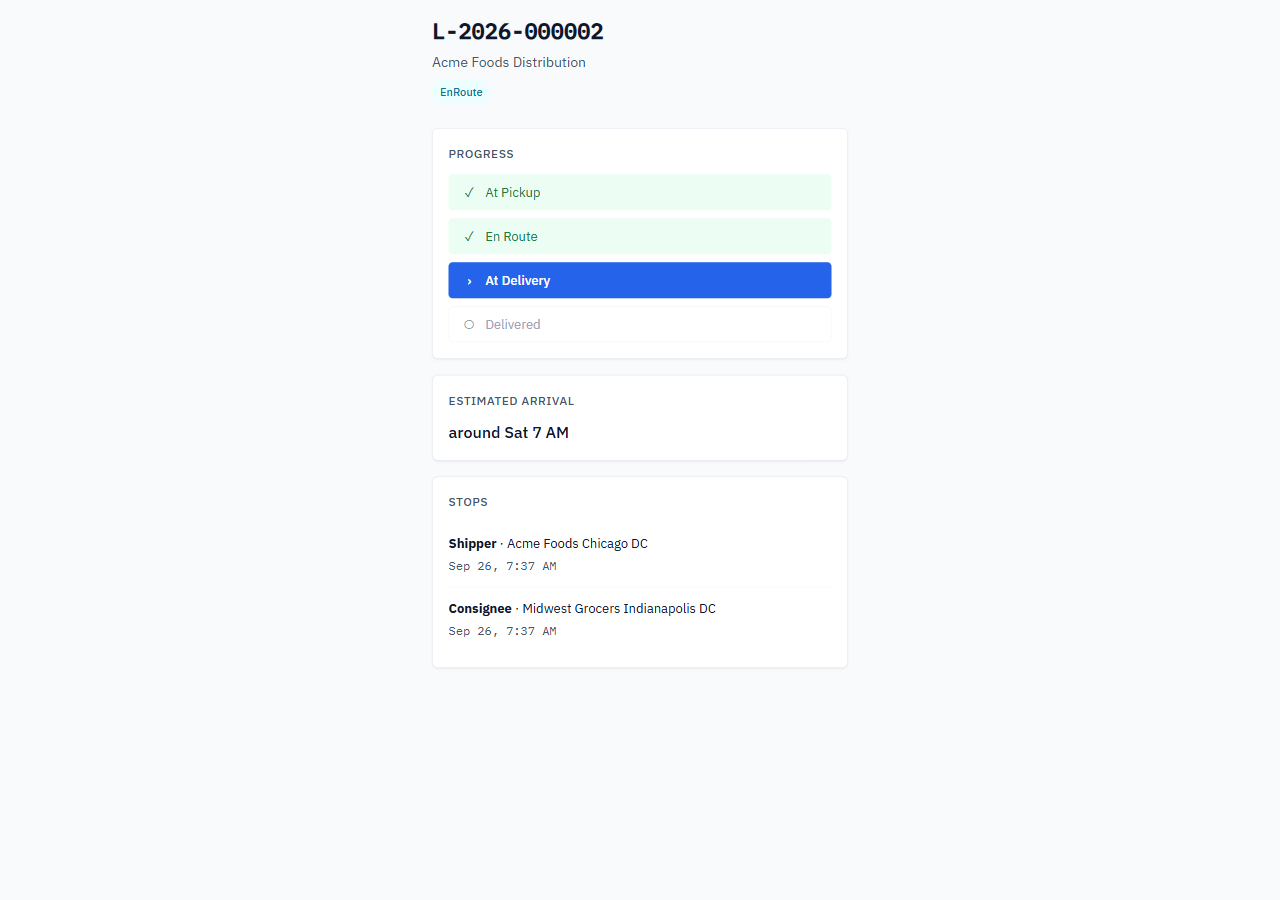
That’s the page that stops the “where’s my truck?” calls.
Try it yourself
Techvia TMS includes phone-based driver tracking and customer links. It’s $49 a month with unlimited users and trucks, and no credit card is needed to start.