In Techvia TMS you invite teammates from the Members page, pick a role for each, and they set their own password from an emailed link. If you’ll be creating loads, there’s one extra step that catches almost everyone: every load needs a dispatcher, and a dispatcher record has to be linked to a user who has the Dispatcher role. So the practical order is invite first, create the dispatcher second, build loads third.
This is part two of the series that starts with setting up your account.
Invite a member
Open Members in the left-hand menu under Workspace. You’ll see everyone with access to your organization, along with their tenant, role and status. Right now that’s just you.
Click Invite member.
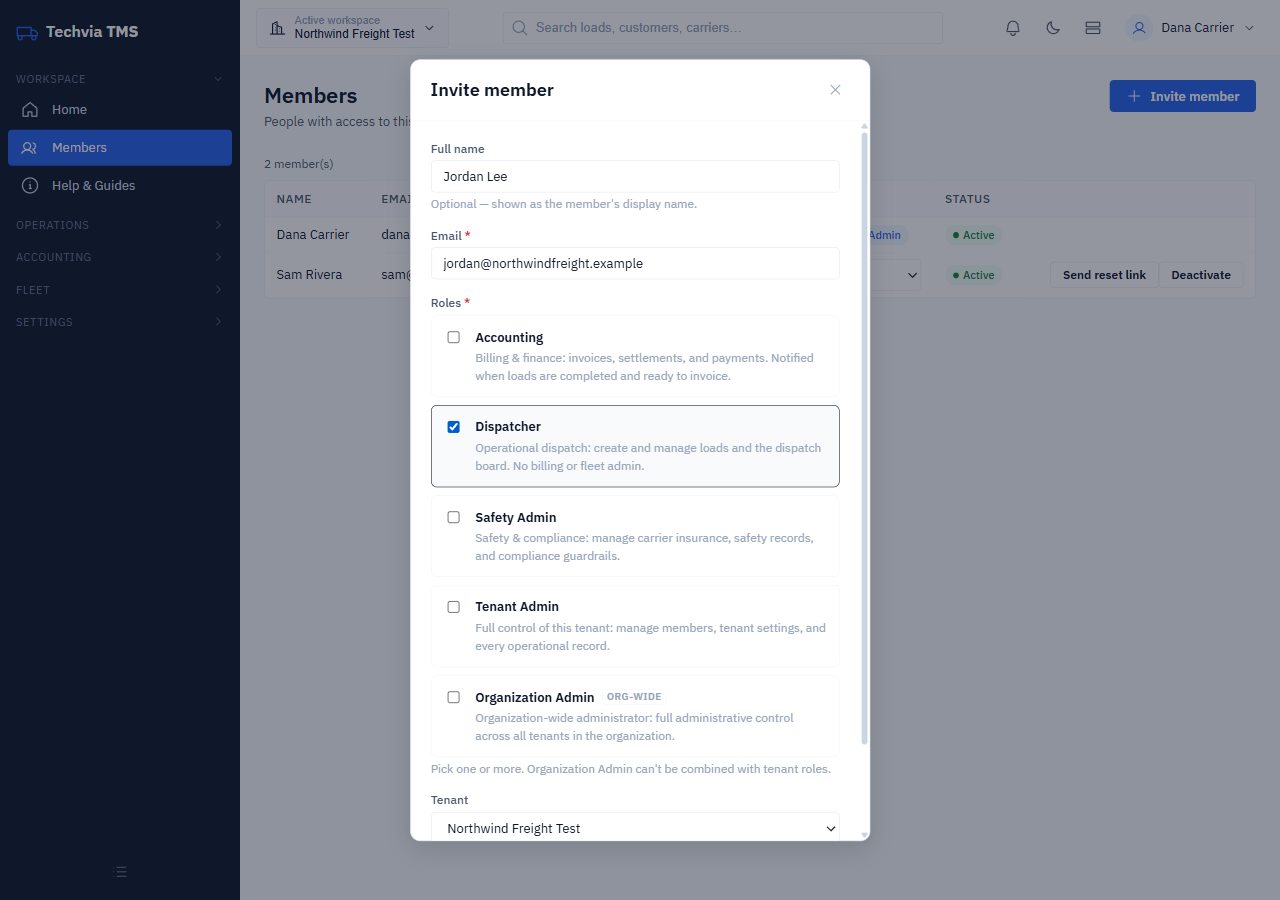
- Full name is optional. If you fill it in, it becomes their display name.
- Email is where the invitation goes.
- Roles are checkboxes, and you can pick more than one.
- Tenant tells Techvia which workspace the roles apply to. It’s required for the tenant-level roles.
Which role should you pick?
| Role | What it’s for |
|---|---|
| Dispatcher | Operational dispatch: create and manage loads and the dispatch board. No billing or fleet admin. |
| Accounting | Billing and finance: invoices, settlements and payments. Notified when loads are completed and ready to invoice. |
| Safety Admin | Safety and compliance: carrier insurance, safety records and compliance guardrails. |
| Tenant Admin | Full control of the tenant: members, settings and every operational record. |
| Organization Admin | Organization-wide administrator across all tenants. Can’t be combined with the tenant roles. |
Those descriptions are Techvia’s own, straight from the dialog. For a small brokerage the usual split is Dispatcher for whoever books freight and Accounting for whoever sends invoices. Keep Tenant Admin for people who should be able to change settings and manage the team.
Click Send invite. The new person appears in your list straight away with a Pending status, and you get Re-invite and Deactivate buttons in case the email goes astray or you invited the wrong person.
What your teammate sees
They receive an email titled “You’re invited to Techvia TMS” with two links, Accept and Decline. The invitation is valid for 7 days. Accepting opens a Set your password screen, and once they’ve saved one, they can sign in.
Two details worth knowing:
- The link works even if the person is already signed in to Techvia somewhere else. Accepting an invite doesn’t sign anyone out.
- Once they’ve accepted, their status in your Members list changes from Pending to Active, and the row gets a Send reset link button for password resets.
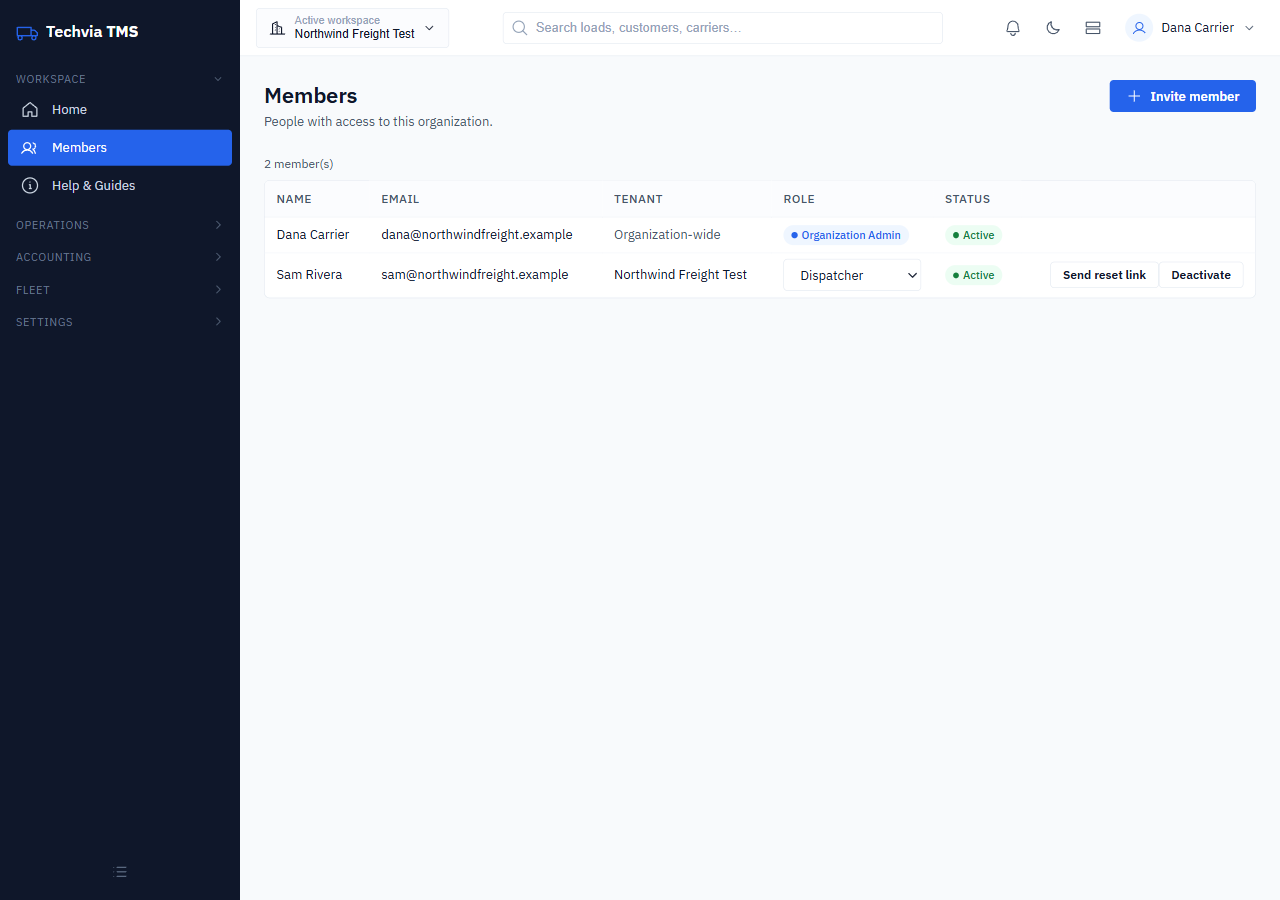
You can change someone’s role from the dropdown in their row, or deactivate them when they leave.
Create the dispatcher record
Inviting a user with the Dispatcher role isn’t quite enough on its own. Go to Operations → Dispatchers and click Add dispatcher.
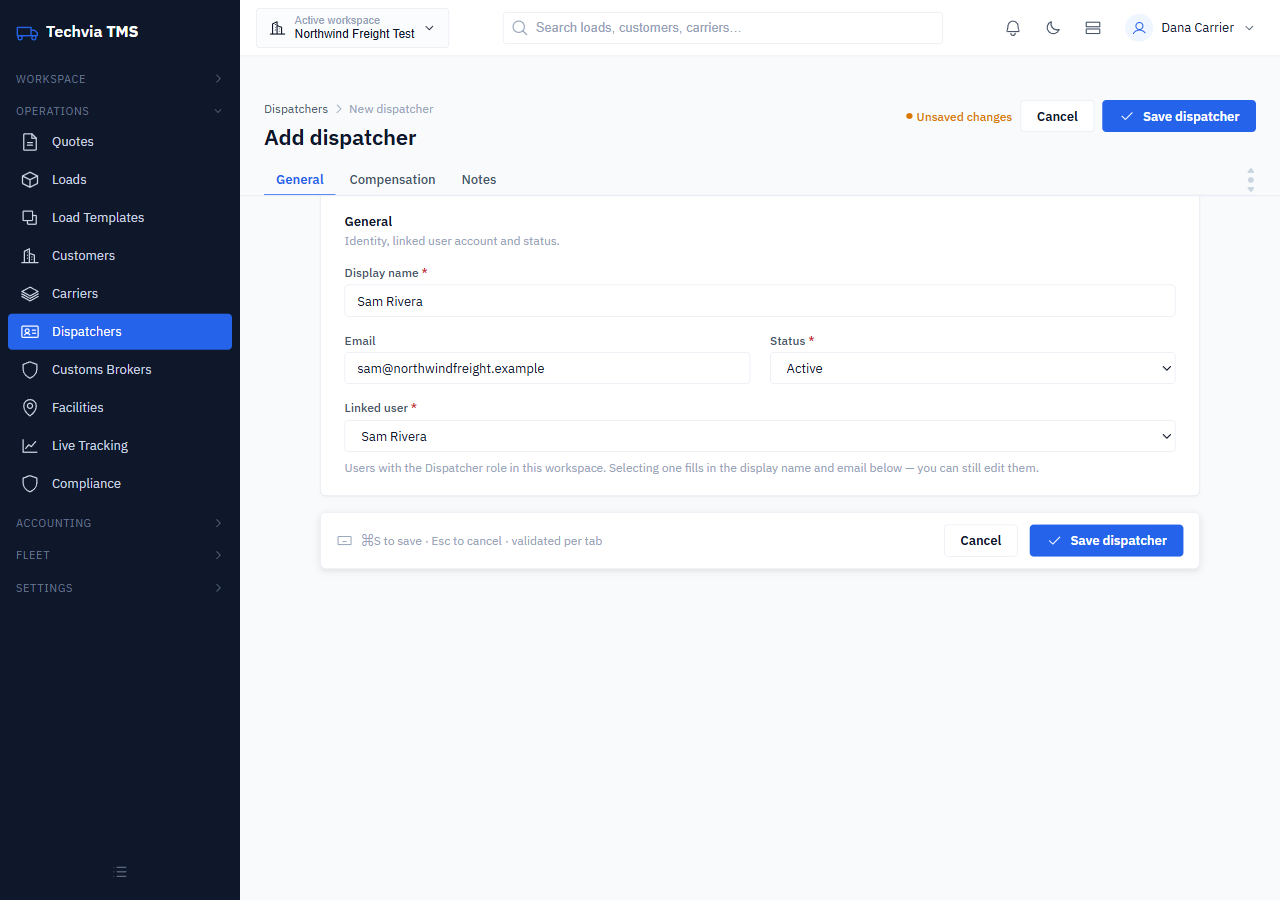
The key field is Linked user. It lists the people in your workspace who have the Dispatcher role, and picking one fills in the display name and email for you (you can still edit them). Leave the status on Active and save.
That’s the record loads point to when you choose who’s dispatching. The form also has a Compensation tab, where you can set the dispatcher’s pay structure, and a Notes tab. You can leave both until later.
Why a dispatcher is required
It looks like extra work the first time, but the dispatcher record is what ties each load to a person. Techvia’s accounting side includes dispatcher settlements, which pay dispatchers on the loads they booked using the pay structure stored on this record. And because the dispatcher field is required on every load, it’s better to know about it up front than to find out halfway through your first booking.
Where to go next
Your workspace now has a person who can book freight. Before you build a load you still need the companies and places it involves, so the next guide covers adding customers, facilities and carriers.
If you’re still working out who should do what on a small team, the post on how to reduce dispatcher workload is a good companion read.
Try it yourself
Techvia TMS costs $49 a month with unlimited users, so inviting your whole team doesn’t change the price. No credit card is needed to start.