If you haul the same lane every week, you shouldn’t be typing the same customer, stops, commodity and rate every week. In Techvia TMS you turn any load into a template with one click, then create the next load from it by choosing a pickup date. Every stop is rescheduled relative to that date. This guide shows both steps, tested on a real Chicago-to-Indianapolis lane.
It builds on creating your first load.
Step 1: Save a load as a template
Open a load you’ve already run and click Save as template at the top. Give it a name you’ll recognise in a list, such as “Acme CHI → IND dry van”, and save.
Techvia snapshots the load’s customer, dispatcher, load type, equipment, rate, stops and other charges into a template and opens it for review.
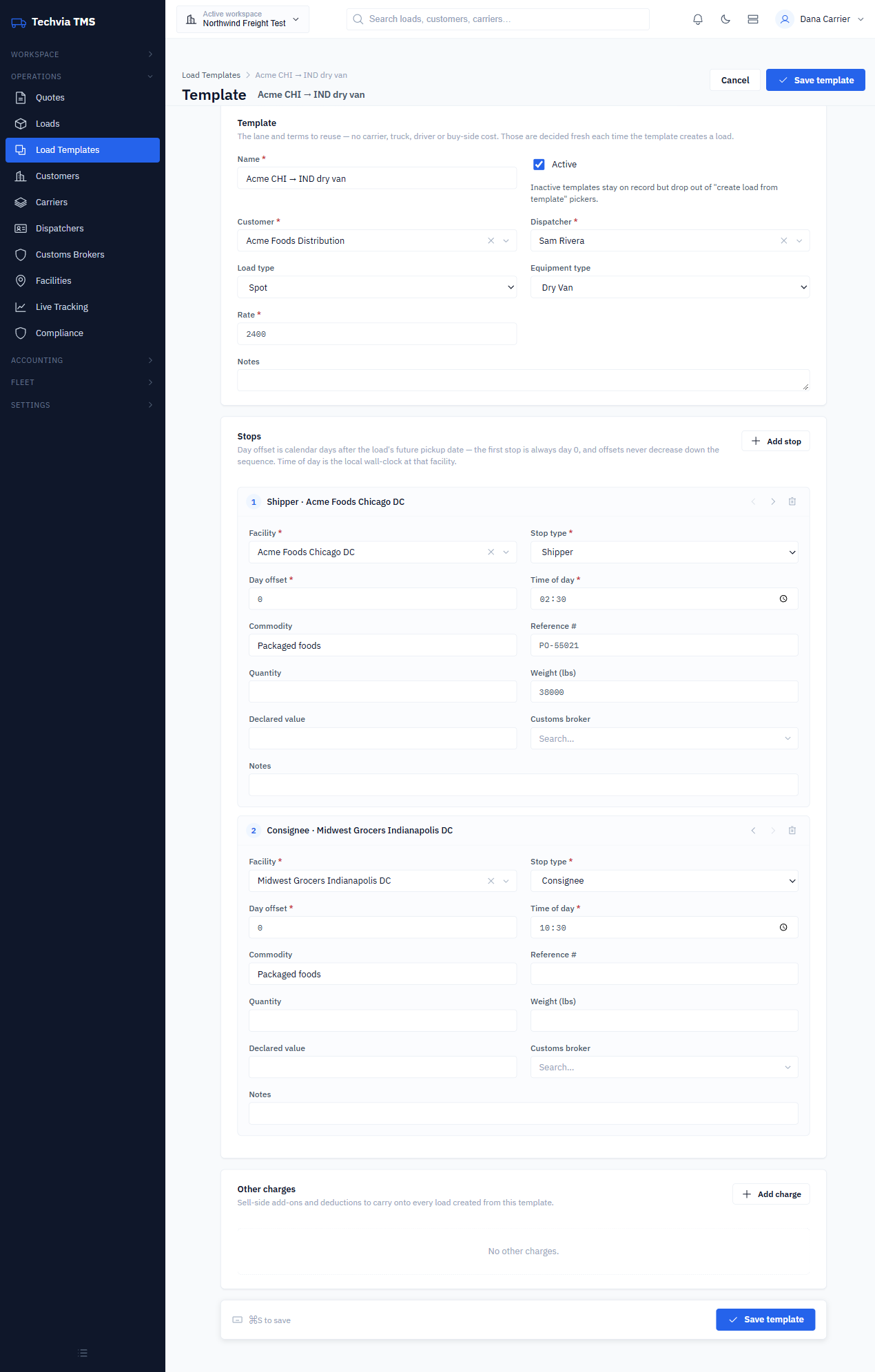
Three things are worth understanding on this screen:
- What’s deliberately left out. The template keeps the lane and terms but no carrier, truck, driver or buy-side cost, because those are decided fresh each time. You’ll assign coverage on each new load.
- Day offset. Each stop has a day offset counted from the pickup date. The first stop is always day 0. A delivery the next day would be day 1.
- Time of day. The appointment time is stored as the local time at the facility, so a 7 AM dock time stays 7 AM whatever time zone your dispatcher is in. This works best when the facility was created by picking its address from search, so Techvia knows its time zone.
You can also build templates from scratch under Operations → Load Templates → New template, and switch off Active to retire an old lane without deleting it.
Step 2: Create a load from the template
Go to Operations → Loads and click New from template. Pick the template and a pickup date. That’s all it asks for.
Click Create load and a new load opens straight away with the next load number. When we created one for October 19 from our template, both stops landed on October 19 at the same appointment times as the original load. The customer, dispatcher, equipment and rate came across, and the carrier did not, which is what you want. The new load shows up under Needs coverage on the dispatch board.
From there it’s a normal load: assign a carrier or your own driver and send the tracking link. See how to track a driver with a phone link.
When templates pay off
- Dedicated and contract freight: the same lanes on a schedule.
- Shippers with fixed docks and appointment windows, where the stop details never change.
- Multi-stop runs, where re-entering five stops is where mistakes creep in.
If most of your week is repeat freight, templates plus a good dispatch board are one of the simplest ways to reduce dispatcher workload.
Try it yourself
Techvia TMS includes load templates on every plan. It’s $49 a month with unlimited users and trucks, and no credit card is needed to start.