A driver settlement in Techvia TMS pulls a driver’s completed loads for a pay period, applies the driver’s pay structure, and shows exactly how each line was calculated. The flow is: set the driver’s pay structure once, then Generate settlement for a period, review it, Approve it and Pay. This guide walks through it with a real example: a company driver paid 28% of linehaul on a $2,450 load.
If the formulas themselves are new to you, read driver settlement calculation explained and owner-operator pay: percentage vs per mile first.
Step 1: Set the driver’s pay structure
Open the driver under Fleet → Drivers and go to the Compensation tab.
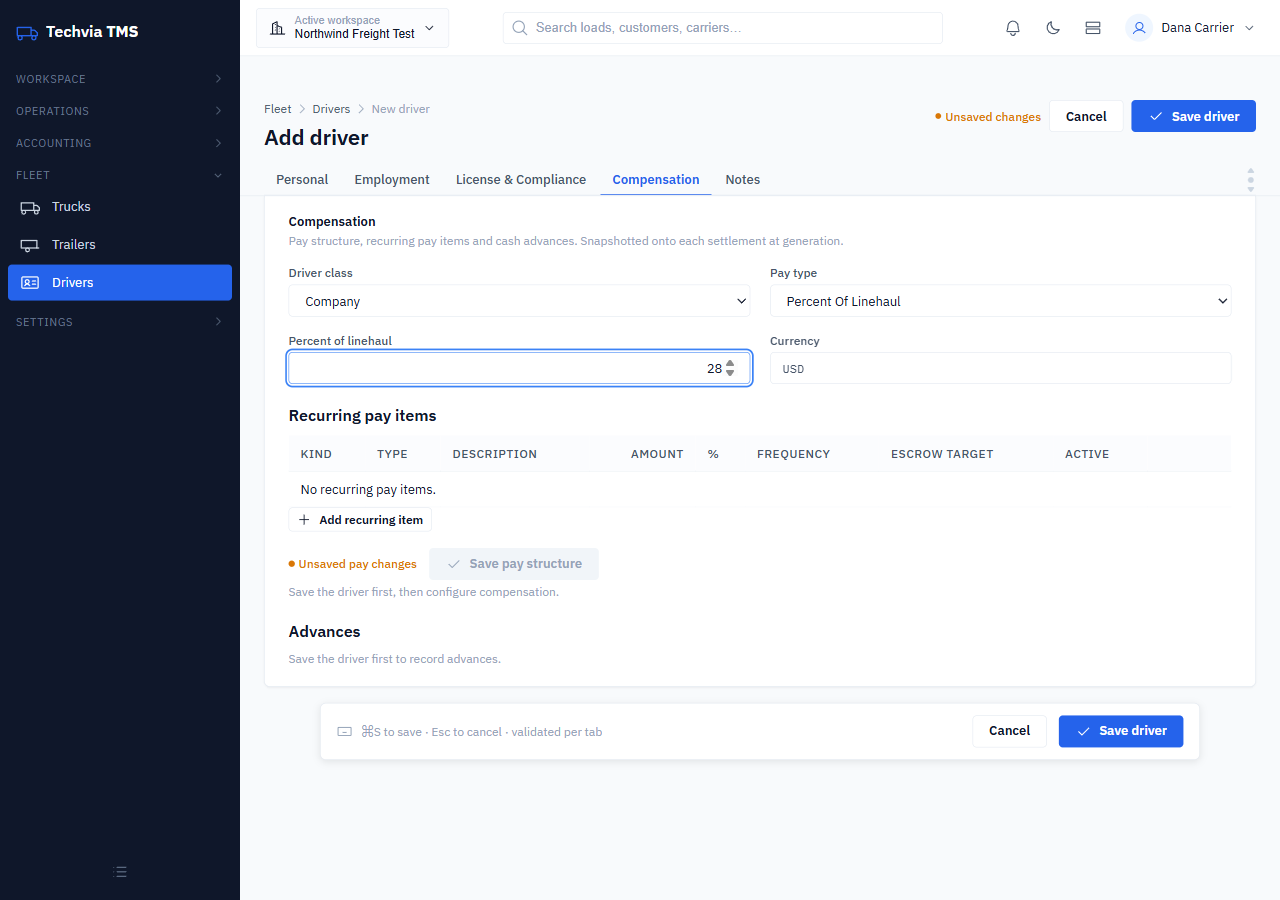
- Driver class: Company, Owner Operator or Lease Operator.
- Pay type: Per Mile (loaded and empty rates), Percent Of Linehaul, Flat Per Load, Per Pick/Drop, or Percent Owner Operator. The fields below change to match.
- Recurring pay items for regular additions or deductions, with an escrow target if you hold escrow.
- Advances for cash advances that get recovered from later settlements.
Important: click “Save pay structure”. Pay has its own save button on this tab, separate from Save driver. On a brand-new driver, save the driver first, then come back to Compensation, set the pay and click Save pay structure. If you skip it, the driver has no pay set, and their first settlement will come out at $0.00. We found this the hard way in testing.
Pay is snapshotted onto each settlement when it’s generated, so changing a driver’s pay later doesn’t rewrite settlements you’ve already produced.
Step 2: Generate the settlement
Go to Accounting → Driver Settlements and click Generate settlement.
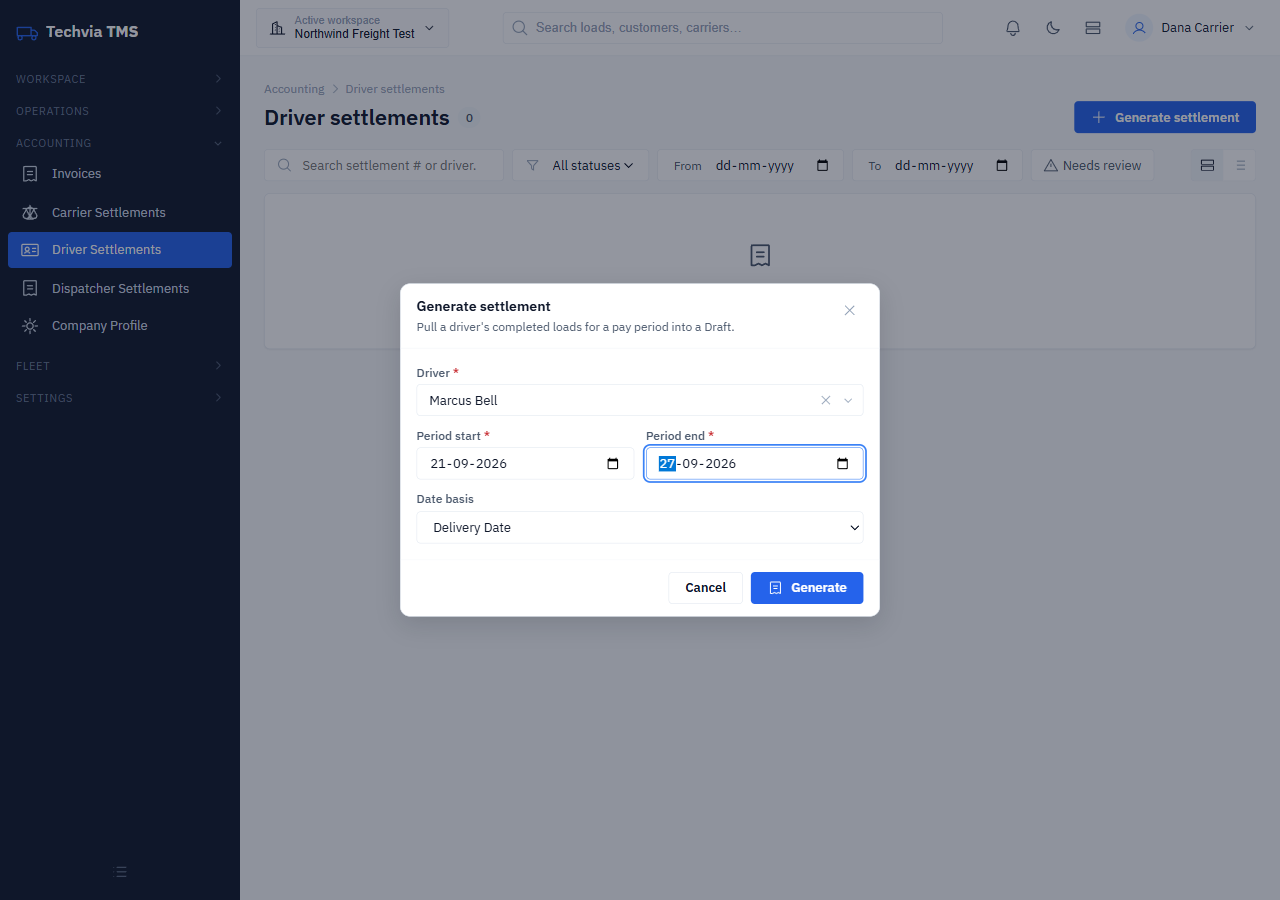
- Driver: who you’re paying.
- Period start and Period end: your pay week.
- Date basis: whether a load belongs to the period by its delivery date (the default) or its ship date.
It pulls that driver’s completed loads in the period into a Draft. Loads that aren’t marked Completed won’t appear, so close out your loads first.
Step 3: Check the math
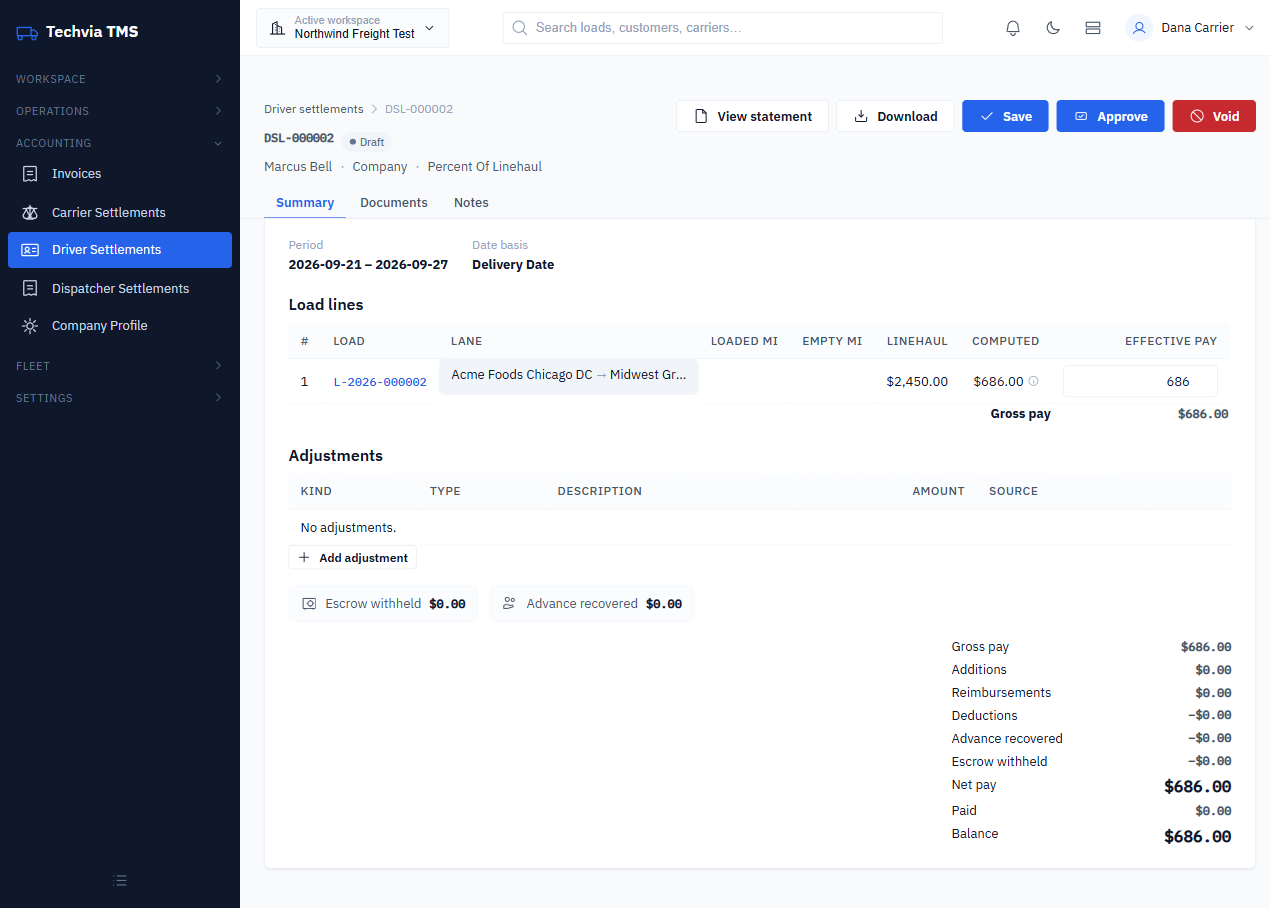
Each load gets a line with its lane, loaded and empty miles, linehaul, the computed pay and an effective pay field you can override. The info icon next to the computed amount shows the formula. Ours read linehaul 2450.00 × 28% = 686.00. That transparency is the point: when a driver asks how you got to a number, the answer is on the statement.
Below the lines:
- Adjustments for one-off additions, reimbursements or deductions.
- Escrow withheld and Advance recovered, which come from the recurring items and advances on the driver’s Compensation tab.
- A summary from Gross pay down to Net pay and Balance.
View statement opens the driver-facing statement as a PDF, and Download saves it (ours came down as DSL-000002.pdf). The PDF prints the same formula under each load, so the driver sees exactly how their pay was worked out. Depending on your settings, approval may require documents such as the POD attached to the load.
Step 4: Approve and pay
Click Approve. The settlement is marked Frozen — Approved, so the numbers can’t change underneath you. If you need to fix something after that, Void it and generate a new one. Voiding sends its loads back to the unsettled queue.
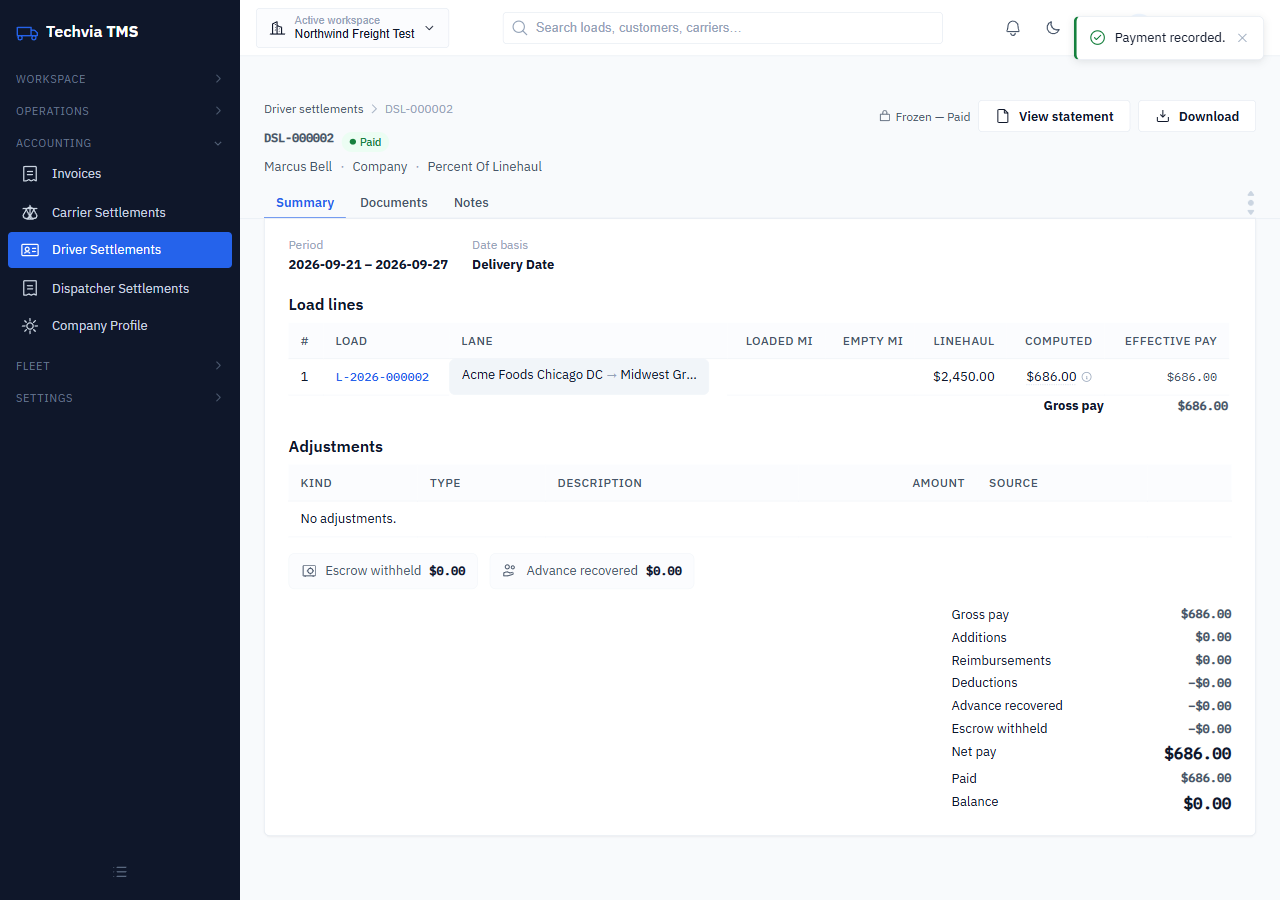
Click Pay. The dialog shows the net pay due with the amount pre-filled, plus a payment method field for “ACH” or a check number. Record it and the settlement becomes Paid with a zero balance.
What about carriers and dispatchers?
The same pattern covers the other people you pay. Carrier Settlements are created automatically when a load is completed, and include a reconciliation view that compares what the carrier invoiced against the cost you agreed on the load, so a $50 lumper surprise shows up as a variance before you pay. Approving one requires the carrier’s invoice and, by default, the POD to be uploaded. Dispatcher Settlements pay dispatchers on their loads. Both deserve their own guides. Meanwhile, freight invoicing and settlement basics covers how the money side fits together.
Try it yourself
Techvia TMS handles invoices plus carrier, driver and dispatcher settlements for $49 a month, with unlimited users and trucks and no credit card needed to start.